
A phone system your team can run themselves.
Every extension, number and route in one portal, with the changes in your own hands.
Extensions on any device
An extension is a person, not a desk. It rings wherever they answer: the desk phone or the browser, and soon our own mobile app.
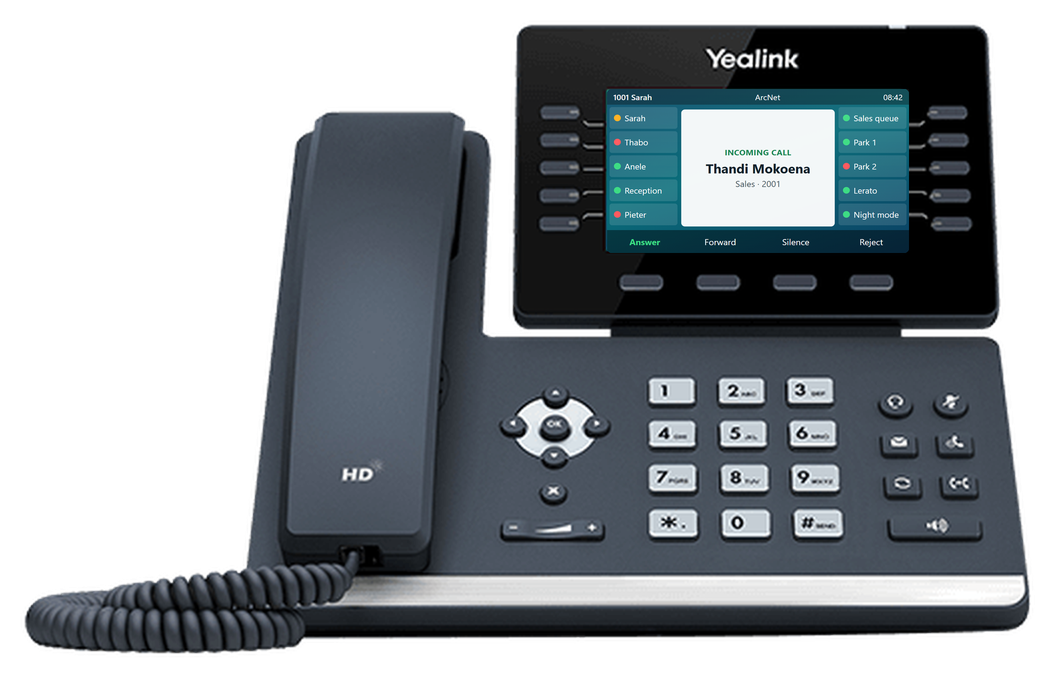
Desk phones set up for you
Yealink phones are configured from the portal: add the phone to an extension and it collects its own settings, including its keys and lines.
Hot desking
Staff who move around log in to any shared desk phone with a PIN, and their extension follows them.
In the browser
The same extension in a browser tab, with transfers, voicemail and call history working as normal. On iPhone soon, with ArcSIP.
Every extension, and whether its phone is working
One list shows each person's extension, the phone it's on and whether that phone is online right now, so a dead handset shows up before a customer finds it.
- Online, offline and never-seen phones at a glance, with how long since each was last seen
- The phone model or browser each extension is using
- Filter by department, and by who has forwarding or Do Not Disturb on

The simplest desk phone setup there is.
Three things in the portal, then the phone does the rest. No web pages on the phone, no typing passwords into a keypad, no visit to set it up.
Add the phone
On the extension, enter the phone's MAC address and choose a template. That's the whole form.
Plug it in, anywhere
Through Yealink's redirect service or the office network, a new phone finds ArcNet by itself, at the office or at home.
It's ready
The phone collects its extension, keys, busy lamps and settings, and keeps them up to date from then on.
One template, hundreds of phones
Build a template once and give it to every phone of that model. Change it, and every phone on it picks up the change.
Every Yealink model, to scale
All 35 Yealink T3x, T4x and T5x models, each drawn true to life, so you lay out keys on the phone you're holding.
Exceptions without the mess
An extension that needs different keys gets its own copy of the template. A hot desk template makes a shared phone that waits for someone to log in.
Calls go where you decide
Lay out the way calls flow through your business on one canvas, from the first ring, and publish it when it is right.

Auto-attendants
"Press 1 for sales": menus with your own recorded prompts, sending each key where it should go.
Hunt groups and queues
Ring a team together or in turn, or queue callers with music until someone is free.
Business hours and holidays
Open and closed routing by your own hours, with public holidays and one-off closures as closed days.
Parking, conferencing and feature codes
Park a call and pick it up from another phone, meet in conference rooms, and use feature codes from any handset.
Blocked numbers
Stop nuisance callers from reaching you, across the whole company.
Your numbers
South African numbers, each routed to a person, a team, a queue or a menu, and moved between them in a click.
Call flows on one canvas
Lay out what happens to a call step by step, from the first ring to the last. Changes wait in a draft until you publish them.
Describe it in a sentence
Write how calls should go, such as "weekdays ring Sales, after hours take a message", and ArcNet builds the flow from your own teams, menus and recordings for you to check.
Every change kept
Each routing change is kept as a version, like a document's history. See any earlier version as it was, name the ones that matter, and roll back to one.
Every call, with its recording
The call history shows who called whom, how long it took, the call quality and what it cost, with the recording one click away on calls that were recorded.
- Filter by date, direction, extension, and answered or recorded
- Outcomes agents chose, shown on the call
- Outside calls costed to the second, in rands

Voicemail to email
Every voicemail arrives in the person's inbox as a recording, and waits on their phone and in the portal too.
Recordings kept in South Africa
Turn recording on per extension. Recordings are stored in South Africa, in storage designed for 99.999999999% durability and 99.99% availability, with copies in at least three separate data centres. Play or download them from each call in the call history.
Know what calls cost, and stop the ones you didn't make.
Per-second billing
Calls are billed by the second, in rands. Top up by card, or let the account top itself up when the balance runs low.
Budgets
Set a monthly budget on any extension and a cap for the whole account, and see where the money goes by person and destination.
Fraud protection
ArcNet watches for calling that doesn't look like you: sudden spend, runs of expensive international calls, or a phone signing in from somewhere it couldn't have travelled to. It holds outside calls and tells your admins at once.
If something goes down, the right people hear first.
ArcNet checks every carrier connection around the clock. When one stays down for ten minutes, your admins get an email saying what failed and since when, and another when it's back.
- Multi-carrier support behind every account
- Repeated attacks on phone logins are blocked automatically
- Changes are checked before they reach the phone system

Moving from an old PABX?
Tell us what you have today. We'll show you what it looks like on ArcNet.